

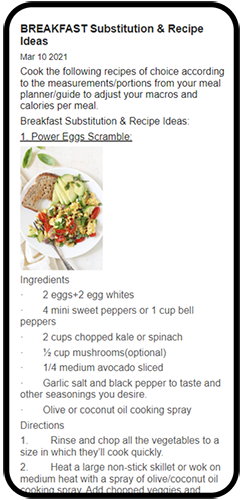
You can create articles in the Blog/articles section of your Library. A new article can be shared with anyone via a link (public), or set to client-only (private). Client-only articles are only readable by your clients using the SimpleFit client app.
Articles also have a 'Live' setting. This allows you to create an article over time and make live only when it is ready for viewing.
To create a new article go to your Library using the link at the top of the dashboard, then click on the Blog/Articles category. This page will list all the articles you have written.
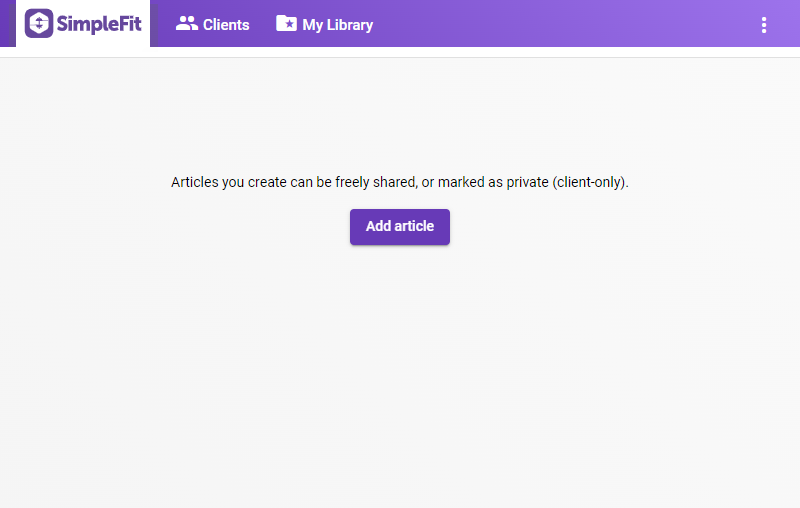
Clicking Add article will load an article creation page, which contains basic settings and a word editor.
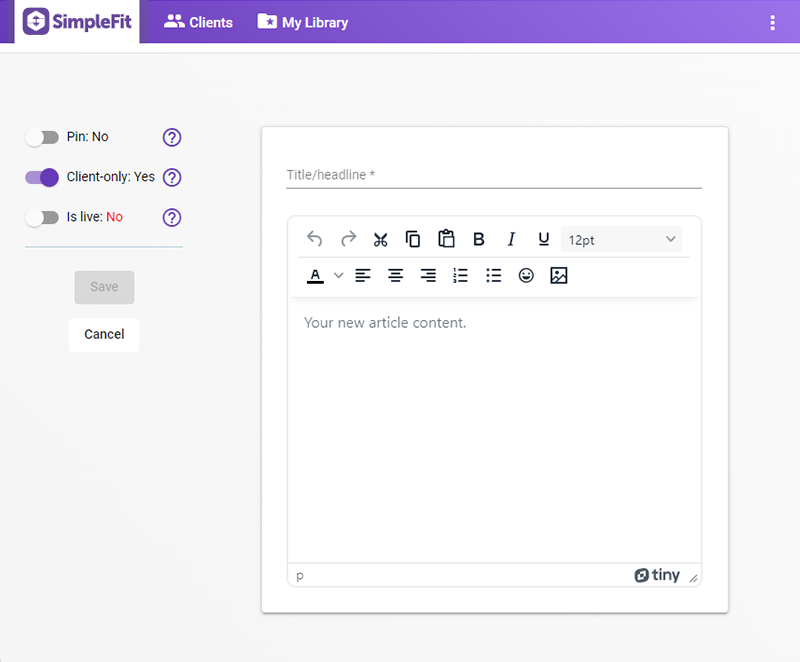
The settings available are:
- Pin: Pinning an article will place that article at the top of the list of articles your client sees in the SimpleFit client app.
- Client-only: This restricts an article to be read by only your clients. If this is off, SimpleFit provides you a link to your article that you can share with anyone.
- Is live: If an article is not live it will not be displayed anywhere except in your library. This allows you to work on your article over time and make live only when finished.
- Title/headline: Required. This will always show as the large, bold title of your article. You cannot adjust the format (ex; size, font) of this text.
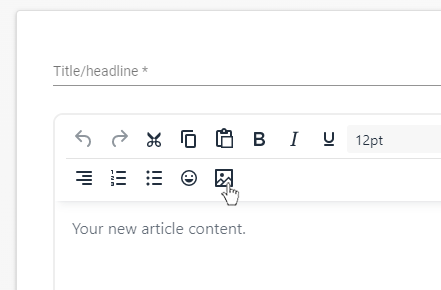
- Article content: The actual content of your article. You can use the text-formatting buttons to update portions of your content (ex; bold, italic) without dealing with any manual code creation.
You can add an image to your article. Currently SimpleFit will not upload a copy of your image. You must provide a direct link to the image instead.
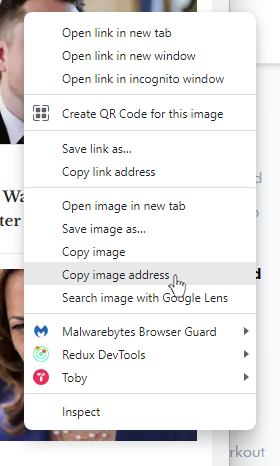
You can find the link to an image you want to use by right-clicking on it, and in the pop-up menu choosing the option for copying the link. In Chrome it is labeled 'Copy image address' and in Firefox it is 'Copy image link'.
In SimpleFit's article editor, click the Insert image button and in the pop up paste the copied link.

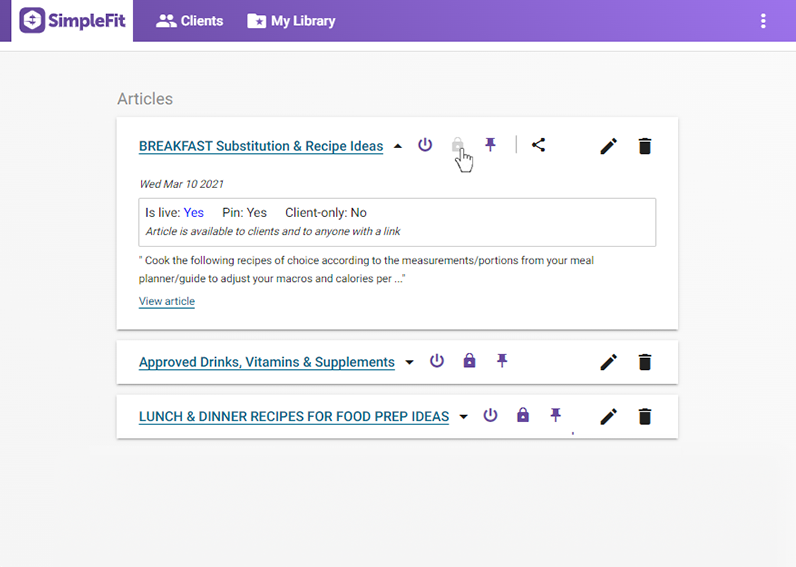
After you save your article it is added to your article library. The clickable icons next to your article title can be used to set the article as live, private (client-only) and/or pinned.
If your article is live and not private, a fourth button will show which can be used to share your article with anyone.
Clients can access your articles in the SimpleFit client app under the Settings tab and then by viewing your profile.
