mHXQpDlxN6A
You can create a new meal plan in 2 ways;
- As a library item. Your library has a Meal Plans category that lets you build and save meal plans that can later be used for clients.
- For a client. From your dashboard main page you can click on a client's name and then click on the Nutrition tab to begin building a meal plan for that client.
(The screenshots below are from the Nutrition tab.)
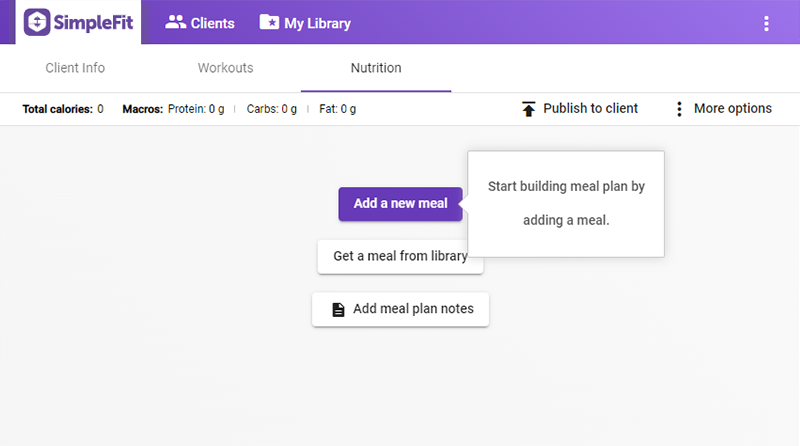
New clients start with an empty workout program and meal plan. This starter plan does not have any meals or notes.
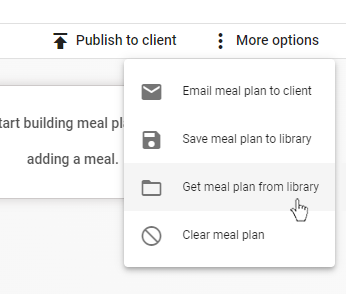
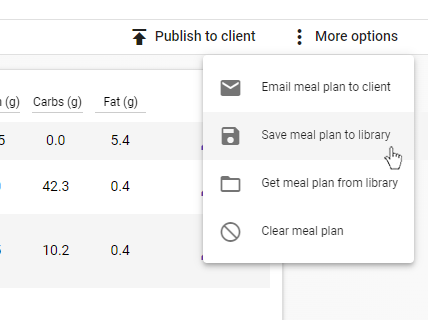
At this point if you have a meal plan already saved in your library, you can get a copy of it by choosing 'More options' at upper right.
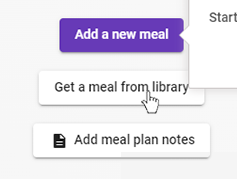
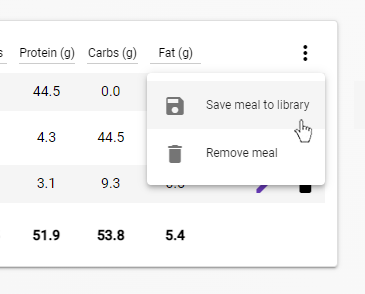
You can also get copies of individual meals if you have any saved in your library.
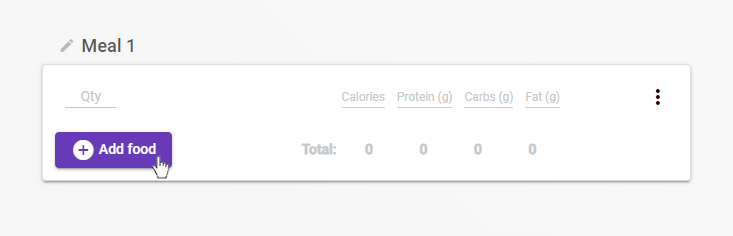
Add a meal to start building a meal plan. After a meal has been added, food items can be added to the meal by simply clicking 'Add food'. SimpleFit saves these changes as you make them.
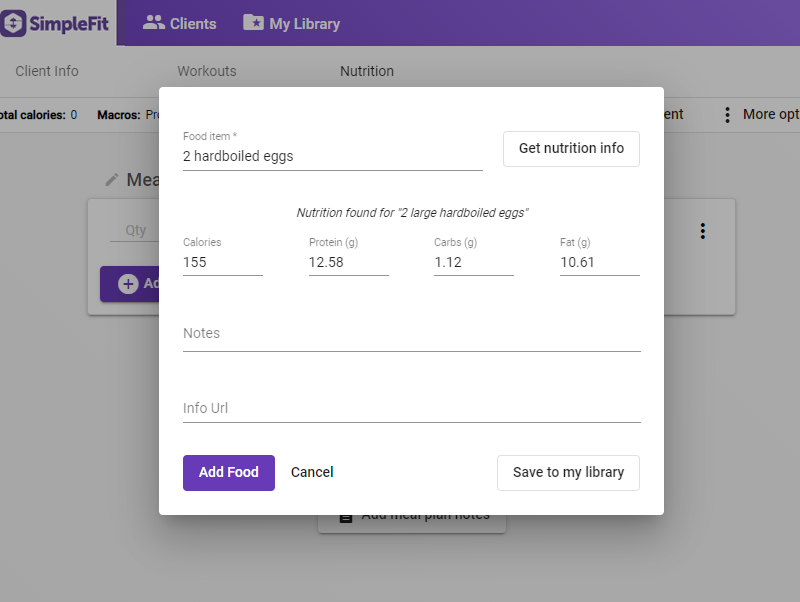
In the add food pop-up you can enter the name of your food and its associated macros, if necessary. If you do not know the macros of the food item you are entering you can click 'Get nutrition info' to look up the macro information. SimpleFit will automatically fill in the appropriate text with the result.
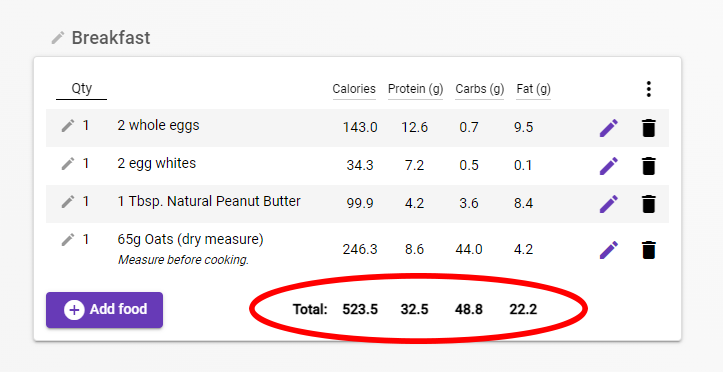
As you continue to add food items, the macro totals are calculated for the meal.
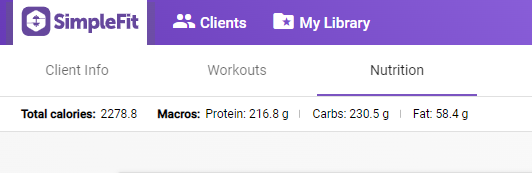
As you continue to add meals, the macro totals are calculated for the entire meal plan.
When finished you can save the entire meal plan or the individual meals to your library. These options are found under 'More options' (to save the entire meal plan) or in a meal's 'more' icon to save an individual meal.
When you are ready for your client to receive the meal plan you created for them, you can send it in one of two ways;
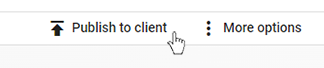
- Publish: By clicking the Publish button, SimpleFit will send a copy of the meal plan to the client's SimpleFit app.
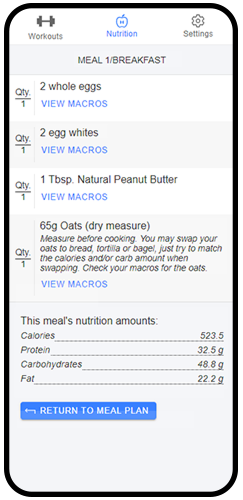
- It can then be viewed by the client using the SimpleFit client app.
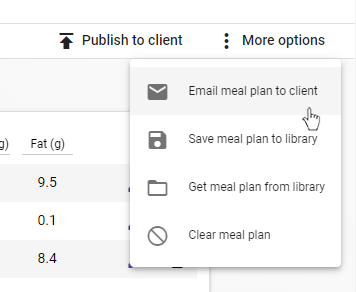
- Email: Under 'More options' is the choice to have SimpleFit automatically generate a pdf of your meal plan and send to the client's email.